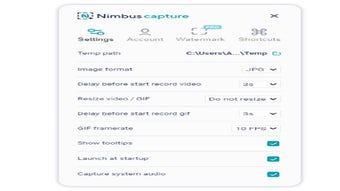


Download Nimbus Capture – Free Screen Capture Tool for Windows, Mac, Android & iOS
Why Nimbus Capture Stands Out as a Top Free Screen Capture Tool
Nimbus Capture is a powerful, free screen capture tool designed for Windows users, but with expanding support across Mac, Android, and iOS platforms. Developed by Nimbus Platform, this software offers a seamless experience for capturing screenshots, recording screen videos, and editing visual content—all within a clean, intuitive interface. Whether you're a student documenting a tutorial, a professional creating training materials, or a content creator sharing step-by-step guides, Nimbus Capture delivers high-quality results with minimal effort.
The tool supports capturing full screens, specific windows, or custom regions, giving users complete control over what they want to record. What truly sets Nimbus Capture apart is its built-in annotation engine, allowing users to add text, arrows, shapes, and highlights directly on their screenshots. This feature makes it ideal for creating clear, professional-looking visuals without needing external editing software.
The software is lightweight, fast, and doesn’t slow down your system, even during long screen recordings. With automatic updates and a secure download process, Nimbus Capture ensures you’re always using the latest version with the best performance and bug fixes. It’s a reliable, free alternative to paid screen capture tools, offering robust features that rival premium software.
Key Features and Tools for Seamless Screen Capture and Editing
- Free screen capture for Windows, Mac, Android, and iOS
- Full-screen, window, and custom region capture options
- Screen recording with audio and webcam overlay
- Real-time annotation: add text, arrows, rectangles, and highlights
- Cloud storage integration for easy sharing and backup
- One-click upload to Nimbus Note or external platforms
- Supports multiple output formats: PNG, JPG, MP4, and more
- Customizable hotkeys for quick access and faster workflow
- Automatic updates to ensure security and performance
- Lightweight design with minimal system resource usage
One of the most impressive aspects of Nimbus Capture is its versatility. The screen recording feature allows you to capture both your screen and microphone audio—perfect for creating tutorials, online lectures, or gameplay videos. You can even overlay your webcam feed, making it ideal for video presentations or remote teaching.
The annotation tools are incredibly intuitive. Simply select the "Draw" or "Text" tool after capturing, and start editing. Arrows clearly point to important areas, while highlights draw attention to key details.
These edits are saved directly into the image, so there’s no need to export and re-edit in another program. The software also integrates with Nimbus Note, a cloud-based workspace, allowing you to save, organize, and share your captures instantly. Whether you're sending a bug report to a developer or sharing a training guide with a team, the one-click upload feature streamlines collaboration.
The ability to export in multiple formats ensures compatibility across devices and platforms. Plus, the customizable hotkeys let you capture and record without interrupting your workflow—ideal for power users and busy professionals.
How to Install and Use Nimbus Capture on Windows, Mac, Android, and iOS
Installing Nimbus Capture is quick and straightforward across all supported platforms. On Windows, visit the official Nimbus Platform website and download the installer. Run the file, follow the on-screen prompts, and the software will be ready to use in seconds.
For Mac users, download the .dmg file from the same site, drag the app into your Applications folder, and launch it. Both desktop versions are compatible with Windows 7 and later, and macOS 10.13 or higher. On Android, open the Google Play Store, search for "Nimbus Capture," and install the app.
For iOS users, head to the App Store and download the app from the Nimbus Platform developer page. Once installed, open the app and grant necessary permissions—such as camera access for webcam recording and microphone access for audio capture. To capture your screen, press the default hotkey (usually Ctrl+Shift+1), select your capture type (full screen, window, or region), and click to confirm.
For screen recording, use Ctrl+Shift+2 and choose whether to include audio or webcam. After capturing, use the built-in editor to add annotations, crop images, or adjust brightness. You can then save the file locally or upload it directly to Nimbus Note or other cloud services.
The app syncs across devices, so your captures are always accessible. Regular updates ensure compatibility with new OS versions and improve performance. The entire process—from download to first capture—takes less than five minutes.
Pros and Cons: Is Nimbus Capture Right for You?
Pros
- Completely free with no hidden fees or watermarks
- Available on Windows, Mac, Android, and iOS
- Powerful annotation tools for clear visual communication
- Fast, lightweight, and efficient performance
- One-click cloud upload and sharing
- Supports screen recording with audio and webcam
- Regular automatic updates for security and stability
Cons
- Advanced features are limited in the free version
- Cloud storage is limited without a paid upgrade
- Some users report minor lag during long recordings
- Interface may feel basic to advanced users seeking customization
- Mobile version lacks some desktop-level features
Frequently Asked Questions (FAQ)
Is Nimbus Capture free to download and use?
Yes, Nimbus Capture is completely free to download and use across Windows, Mac, Android, and iOS. There are no hidden charges, and the core features like screen capture, basic editing, and one-click sharing are available at no cost. While premium features exist in the paid tier, the free version offers more than enough for most users.
Can I record my screen with audio using Nimbus Capture?
Absolutely. Nimbus Capture allows you to record your screen with both system audio and microphone input. You can also enable webcam overlay during recordings, making it perfect for video tutorials, presentations, or online meetings.
Does Nimbus Capture work on Mac and mobile devices?
Yes, Nimbus Capture is available for macOS, Android, and iOS. The desktop versions offer the most features, while the mobile apps provide essential capture and sharing tools. All versions sync seamlessly via Nimbus Note.
How do I edit my screenshots after capturing them?
After capturing, you can use the built-in editor to add text, arrows, shapes, and highlights. You can also crop, resize, or adjust brightness. All edits are applied directly to the image and saved with your file.
Is my data secure when using Nimbus Capture?
Yes, Nimbus Capture uses secure protocols for data transmission and storage. Your captures are encrypted when uploaded to Nimbus Note, and you retain full control over who can access your files. The software does not collect personal data without consent.
Final Verdict: Why You Should Download Nimbus Capture Today
Nimbus Capture is one of the most reliable, feature-rich, and user-friendly screen capture tools available today—especially for those seeking a free solution. Whether you're documenting a bug, creating a tutorial, or sharing a quick visual guide, this software makes the process simple, fast, and efficient. Its cross-platform support ensures you can capture and edit content from any device, while the annotation tools enhance clarity and professionalism.
While the free version has some limitations, it still delivers exceptional value. The regular updates, secure cloud integration, and intuitive interface make it a standout choice. If you're looking for a free, secure, and powerful screen capture tool that works seamlessly across Windows, Mac, Android, and iOS, Nimbus Capture is the perfect fit.
Don’t miss out—download it now and elevate your digital communication.
Download Nimbus Capture today and start capturing, editing, and sharing your screen with ease!







